> For the complete documentation index, see [llms.txt](https://waf-doc.inext.checkpoint.com/llms.txt). Markdown versions of documentation pages are available by appending `.md` to page URLs; this page is available as [Markdown](https://waf-doc.inext.checkpoint.com/how-to/enable-mutual-tls-mtls-authentication.md).
# Enable Mutual TLS (mTLS) Authentication
### Overview
Mutual TLS (mTLS) enhances security by requiring both the server and the client to authenticate each other using digital certificates. When mTLS is enabled, only clients presenting valid certificates signed by a trusted Certificate Authority (CA) can successfully establish a connection,
This guide explains how to upload a trusted CA list, apply the configuration, and enforce the mTLS policy through the asset’s Advanced Settings interface, in in Gateway / Virtual Machine and Single Docker.
#### Prerequisite
* Ensure you have a valid CA certificate (*.pem*) file used to sign client certificates.
* Ensure you have one of the following profile types:
* Docker Agents: Single Container - CloudGuard WAF (With Reverse Proxy)
* AppSec Gateway Profile
* WAF SaaS
#### Instructions to Configure mTLS on
1. Navigate to the asset you wish to protect.
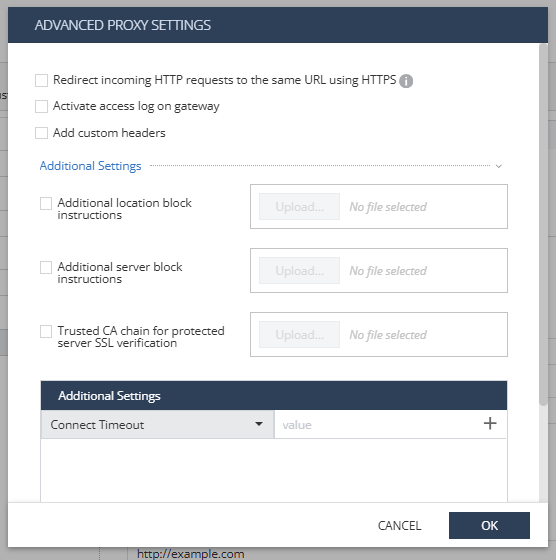
2. Open the Advanced Settings section.
3. Locate the Client SSL Verification configuration option.
4. Select the checkbox labeled Trusted CA list for client SSL verification.
5. Click Upload, then select and upload your CA certificate (*.pem*) file.
6. The uploaded CA list defines which client certificates are trusted for authentication.
7. Verify that the file name appears in the upload field once the upload completes.
8. Save and Apply Configuration
9. Click OK to save your changes.
10. Click Enforce to synchronize the updated configuration to your agents.
11. Once enforced, clients will be required to present valid certificates during connection attempts.
#### Configuring Multiple CA Certificates
If you need to trust more than one Certificate Authority, you can combine multiple CA certificates into a single .pem file.
To do this
* Open a text editor.
* Paste each CA certificate one after another, ensuring each retains its own
*-----BEGIN CERTIFICATE----- and -----END CERTIFICATE----- headers.*
* Save the combined file (for example, trusted-cas.pem), example structure:
*-----BEGIN CERTIFICATE-----*
*(CA Certificate #1 contents)*
*-----END CERTIFICATE-----*
*-----BEGIN CERTIFICATE-----*
*(CA Certificate #2 contents)*
*-----END CERTIFICATE-----*
* Upload this single .pem file as your Trusted CA list.
* All included CAs will be recognized as valid signing authorities for client certificates.
**WAF SaaS CA Certificate Requirements**
Each certificate in the uploaded CA list must meet the following requirements:
* Format: PEM-encoded, each certificate enclosed in *-----BEGIN CERTIFICATE-----* and *-----END CERTIFICATE-----* headers.
* Certificate type: X.509v3.
* Basic Constraints: CA:TRUE (leaf certificates are rejected).
* Public key: RSA 2048, RSA 3072, or RSA 4096; or ECDSA secp256r1 or secp384r1.
* Signature algorithm: SHA-256 or higher (SHA-1 is not supported).
* Bundle size: up to 64 KB, and up to 25 certificates.
* Certificates must not be expired.
{% hint style="warning" %}
mTLS is not supported in WAF SaaS profile for the following special configurations:
* Protecting a root (apex) domain which were onboarded prior to May 25th, 2026
* Using custom ports
* Protecting a domain with an existing CDN distribution (for example, CloudFront)
{% endhint %}
---
# Agent Instructions
This documentation is published with GitBook. GitBook is the documentation platform designed so that both humans and AI agents can read, navigate, and reason over technical content effectively. Learn more at gitbook.com.
## Querying This Documentation
If you need additional information that is not directly available in this page, you can query the documentation dynamically by asking a question.
Perform an HTTP GET request on the current page URL with the `ask` query parameter, and the optional `goal` query parameter:
```
GET https://waf-doc.inext.checkpoint.com/how-to/enable-mutual-tls-mtls-authentication.md?ask=&goal=
```
`ask` is the immediate question: it should be specific, self-contained, and written in natural language.
`goal` is optional and describes the broader end goal you are ultimately trying to accomplish on behalf of the user. GitBook uses it to tailor the answer towards what is most useful for that goal.
The response will contain a direct answer to the question and relevant excerpts and sources from the documentation.
Use this mechanism when the answer is not explicitly present in the current page, you need clarification or additional context, or you want to retrieve related documentation sections.