> For the complete documentation index, see [llms.txt](https://waf-doc.inext.checkpoint.com/llms.txt). Markdown versions of documentation pages are available by appending `.md` to page URLs; this page is available as [Markdown](https://waf-doc.inext.checkpoint.com/setup-instructions/setup-report-triggers.md).

# Setup Report Triggers

CloudGuard WAF protects web servers from attacks. It is possible to configure objects called Trigger objects to determine what will occur when attacks are detected.&#x20;

One of those Trigger objects is of type "Report" and allows a graphical summary report to be sent by email to multiple addresses on a daily or weekly schedule.

## Setting up a Report Trigger

#### Step 1: Create a new "Report" trigger

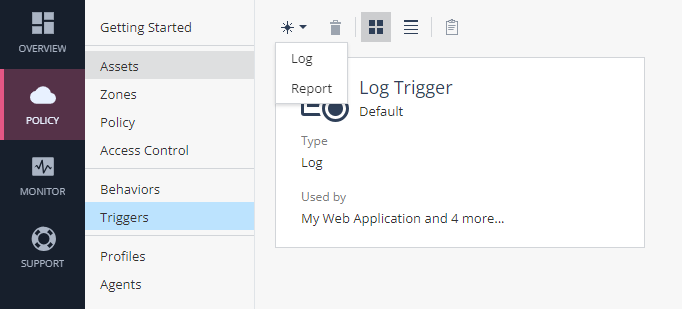
Browse to **Policy->Triggers** and create a new Trigger object of type **Report**.

<div align="left"><figure><img src="https://2760087783-files.gitbook.io/~/files/v0/b/gitbook-x-prod.appspot.com/o/spaces%2FEWA4nfgNrSRL8dA6Kap7%2Fuploads%2FrpFAi2FqrCTVLgKoFkfu%2Fwaf-triggers-new-trigger.PNG?alt=media&amp;token=40d5f2a1-c2b5-4875-94cd-348923e92082" alt=""><figcaption></figcaption></figure></div>

Configure a new name to the new trigger object:

![](https://2760087783-files.gitbook.io/~/files/v0/b/gitbook-x-prod.appspot.com/o/spaces%2FEWA4nfgNrSRL8dA6Kap7%2Fuploads%2FpYdwzySxEmh2qbXOahSo%2Fwaf-triggers-new-report-trigger.PNG?alt=media\&token=ece7bdee-f713-4566-bcce-2a7664db8362)

#### Step 2: Configure schedule and email addresses

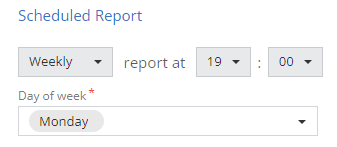
1. **Schedule** - Set up the hour in a daily schedule in which you wish the report to be sent.\
   Or change the schedule to be a weekly schedule and add the day/s of the week in which you want the report to be sent:

<div align="left"><figure><img src="https://2760087783-files.gitbook.io/~/files/v0/b/gitbook-x-prod.appspot.com/o/spaces%2FEWA4nfgNrSRL8dA6Kap7%2Fuploads%2Fk74BnmAayK2HEyv5Yyzl%2Fwaf-triggers-report-weekly-schedule.PNG?alt=media&amp;token=d6f46738-f283-4ed3-9a9a-115df3f5cefc" alt=""><figcaption></figcaption></figure></div>

2. **Email recipients** - Add all email addresses to which the report should be sent.

#### Step 3: Setup your security practice to use the new Log Trigger object/s

Browse to **Policy**->**Assets** and edit the asset you wish to modify.

Go to the **relevant practice** tab and scroll to the bottom.

![](https://2760087783-files.gitbook.io/~/files/v0/b/gitbook-x-prod.appspot.com/o/spaces%2FEWA4nfgNrSRL8dA6Kap7%2Fuploads%2FRUhX5rQW2fNrogQhPLSA%2FUserResponsePage.png?alt=media\&token=c028d198-0997-4976-9ed1-d1483688bf43)

Click on the '**+**' icon next to **Triggers** and add your new Report Trigger object.

## WAF Report&#x20;

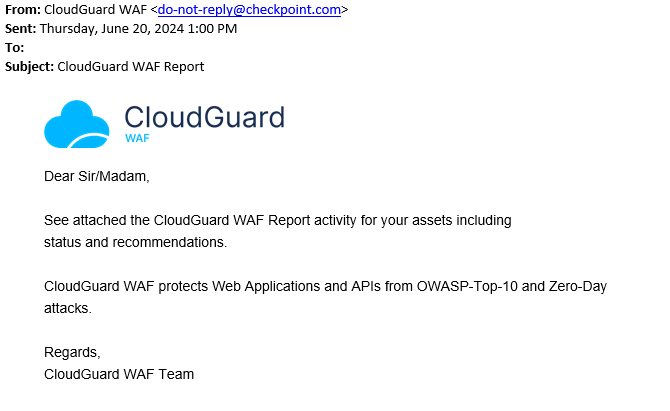
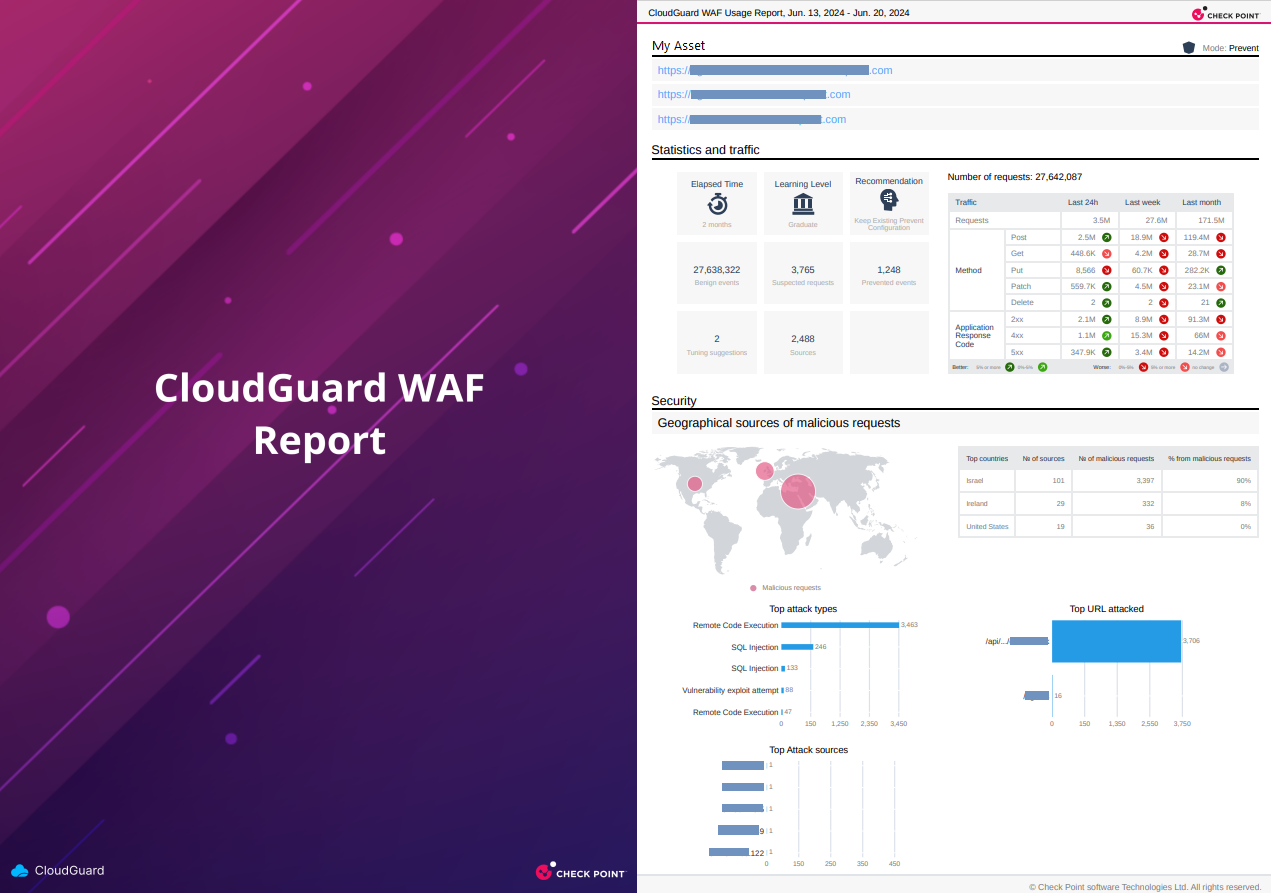
According to the configured schedule an email report will be sent for each asset that uses the Report Trigger object and will include a PDF attachment that contains the actual report.

<figure><img src="https://2760087783-files.gitbook.io/~/files/v0/b/gitbook-x-prod.appspot.com/o/spaces%2FEWA4nfgNrSRL8dA6Kap7%2Fuploads%2FEndkJdMmxduyprxn2BKF%2Fwaf-email-report-body.PNG?alt=media&amp;token=5ec37bd5-2ad8-4e16-8c7a-00433c4c4552" alt=""><figcaption></figcaption></figure>

<figure><img src="https://2760087783-files.gitbook.io/~/files/v0/b/gitbook-x-prod.appspot.com/o/spaces%2FEWA4nfgNrSRL8dA6Kap7%2Fuploads%2FNomfsWNeCOeCSzaReU4F%2Fwaf-email-report-example-content.png?alt=media&amp;token=a83c22e6-9c41-4761-8943-297173a068f8" alt=""><figcaption><p>(In this example, the top countries are shown due to being used in example attacks from various locations, not by real attackers)</p></figcaption></figure>

The email report contains several sections:

1. The **domains of the protected asset** (Top 3 in case the asset contains more).
2. **Statistics and traffic** information:
   1. [Learning](/how-to/track-learning-and-move-from-learn-detect-to-prevent.md) status and number of suggestions pending for fine tuning.
   2. Numbers of sources, suspected requests and benign/prevented events.
   3. Numbers of total requests, as well as breakdown by method and response code for the past day, week and month.
3. **Graphical representation of the top valuable security data**:
   1. Top countries and the number of malicious requests coming from them.
   2. Top attack types and sources.
   3. Top URLs being attacked.

---

# Agent Instructions
This documentation is published with GitBook. GitBook is the documentation platform designed so that both humans and AI agents can read, navigate, and reason over technical content effectively. Learn more at gitbook.com.

## Querying This Documentation
If you need additional information that is not directly available in this page, you can query the documentation by asking a question.

Perform an HTTP GET request on the following URL with the `ask` and `goal` query parameters:

```
GET https://waf-doc.inext.checkpoint.com/setup-instructions/setup-report-triggers.md?ask=<question>&goal=<user_goal>
```

`ask` is the immediate question: it should be specific, self-contained, and written in natural language.
`goal` is what the user is ultimately trying to achieve, the reason they need the answer. Sharing it helps GitBook give you a better, more relevant answer. A goal is most helpful when it describes the outcome the user wants rather than restating the question. For example, with `ask=how do I create an API token`, a goal like `automate deployments from our CI pipeline` lets GitBook tailor the answer to that use case.

The response will contain a direct answer to the question and relevant excerpts and sources from the documentation.

Use this mechanism when the answer is not explicitly present in the current page, you need clarification or additional context, or you want to retrieve related documentation sections.