> For the complete documentation index, see [llms.txt](https://waf-doc.inext.checkpoint.com/llms.txt). Markdown versions of documentation pages are available by appending `.md` to page URLs; this page is available as [Markdown](https://waf-doc.inext.checkpoint.com/troubleshooting/waf-as-a-service/waf-saas-certificate-expiration.md).
# WAF SaaS Certificate Expiration
Check Point WAF now provides daily notifications and email alerts for certificates that are about to expire or have already expired. These notifications help ensure your application traffic is not disrupted due to expired SSL/TLS certificates.
**In-Portal Notifications**
You’ll see certificate expiration alerts directly in the WAF portal:
* **Yellow Warning Notification** – Appears when one or more certificates will expire within the next **14 days**.
* Displays up to **two affected domains** and indicates how many additional domains are impacted (e.g., “+3 more”).
* The notification shows the **minimum number of days left** until expiration among all affected certificates.
* **Red Critical Notification** – Appears when one or more certificates have **already expired**.
* Displays up to **two expired domains** and indicates how many more are affected.
{% hint style="info" %}
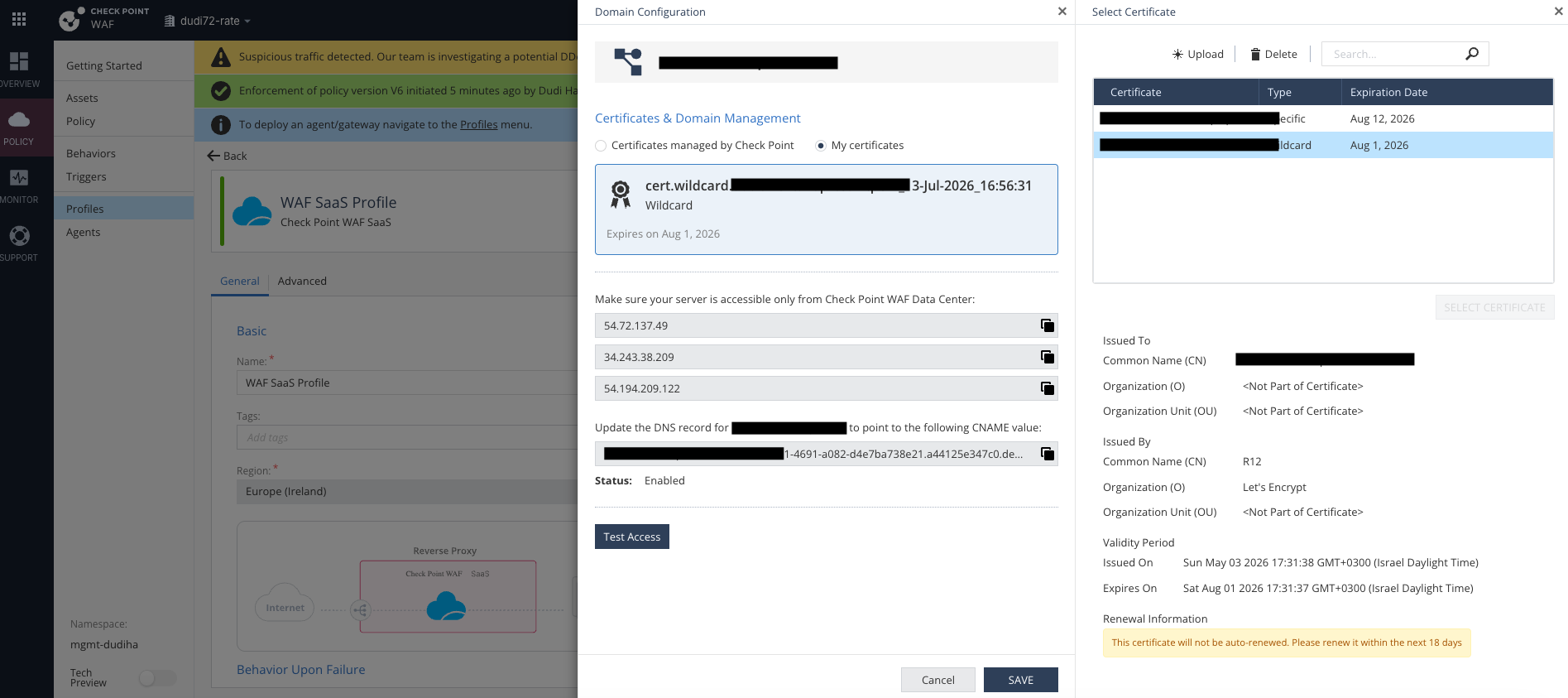
If a **Wildcard** certificate is affected, every domain using that certificate is impacted at once — not just one domain. Check the certificate's **Used By** / attached-domains list to see the full scope before remediating.
{% endhint %}
**Email Alerts**
In addition to UI notifications, Check Point WAF sends **daily email alerts** listing all affected domains:
* Each email includes the domain names and their exact expiration dates.
* Emails are sent once per day until the certificates are renewed.
When Notifications Are Triggered
Notifications and emails are sent in the following cases:
1. **Customer-Uploaded Certificates** — The certificate was manually uploaded and must be renewed before it expires.
2. **Managed Certificates with Missing DNS Validation** — The DNS validation record (challenge) is missing or invalid, preventing automatic renewal.
Once the missing DNS record is restored or the certificate is renewed manually, the notifications will automatically clear.
### How To: Update Expired Certificates
The UI will alert you about certificates nearing expiration and recommend replacing them beforehand:
* Indicator on the domain card (currently shown only for manually uploaded certificates)
* UI banner as described above in In-Portal Notifications section
**How to identify which certificate method is being used**
In the relevant profile, select the domain and click on it to open the side panel. In the **Certificates & Domain Management** section, the selected **radio button** indicates the certificate method:
* **Certificates managed by Check Point** – A certificate automatically issued and renewed by the system (requires valid DNS validation records). Can be Wildcard or Specific.
* **My certificates** – A manually uploaded (BYOC) certificate that must be renewed by the user.
#### Choose the certificate method you are using:
{% tabs %}
{% tab title="Check Point" %}
If you use Check Point's Managed Certificate with CloudGuard WAF as a Service, your certificates will renew automatically. However, they won't renew if the DNS ownership CNAME value has been removed from the DNS records.
There are two possible scenarios:
**1. The certificate is about to expire**
The certificate is still **valid**, but renewal failed because the DNS ownership CNAME record was **removed**.
**What To Do?**
You need to add the DNA ownership CNAME record provided.
1. Log in to the Infinity Portal.
2. Open the WAF application from the application menu.
3. Navigate to the **Profile** page and choose the relevant **SaaS Profile**.
4. Choose the domain you would like to replace the certificate to.
5. Navigate to the **Certificates & Domain Management** section at the top of the menu.
6. Add the CNAME record's name and value in the DNS records management in the DNS provider portal.
7. Click **Enforce**.
**2. The certificate has expired**
The certificate has already **expired**. Adding the DNS record back will **not** trigger renewal.\
To issue a new managed certificate, the domain must be recreated.
**What To Do?**
1. Delete the affected domain from the WAF SaaS portal.
2. Click **Enforce**.
3. Recreate the domain.
4. Complete the regular onboarding flow, including adding the required DNS validation records in your DNS provider.
{% endtab %}
{% tab title="Bring Your Own Certificate" %}
When using BYOC with Check Point WAF as a Service, the WAF admin should manually replace certificates that are about to expire.
**What To Do?**
To change the certificate being used, follow these steps:
1. Log in to the Infinity Portal.
2. Open the WAF application from the application menu.
3. Navigate to the **Profile** page and choose the relevant **SaaS Profile**.
4. Choose the domain you would like to replace the certificate to.
5. Start by uploading the certificate - click on **Upload Certificate**.
6. Continue by uploading the private key - click on **Upload Private Key**.
7. Click **Save**.
8. Click **Enforce**.
{% endtab %}
{% endtabs %}
---
# Agent Instructions
This documentation is published with GitBook. GitBook is the documentation platform designed so that both humans and AI agents can read, navigate, and reason over technical content effectively. Learn more at gitbook.com.
## Querying This Documentation
If you need additional information that is not directly available in this page, you can query the documentation dynamically by asking a question.
Perform an HTTP GET request on the current page URL with the `ask` query parameter, and the optional `goal` query parameter:
```
GET https://waf-doc.inext.checkpoint.com/troubleshooting/waf-as-a-service/waf-saas-certificate-expiration.md?ask=&goal=
```
`ask` is the immediate question: it should be specific, self-contained, and written in natural language.
`goal` is optional and describes the broader end goal you are ultimately trying to accomplish on behalf of the user. GitBook uses it to tailor the answer towards what is most useful for that goal.
The response will contain a direct answer to the question and relevant excerpts and sources from the documentation.
Use this mechanism when the answer is not explicitly present in the current page, you need clarification or additional context, or you want to retrieve related documentation sections.